For anyone working with the Javanese script Hanacaraka in everyday applications like Google Docs or Microsoft Word, there’s a familiar but frustrating scenario: you select a Javanese font, start typing, and the Hanacaraka text collapses. Vowels appear on the wrong side of consonants, diacritics float without alignment, and the elegant flow of Hanacaraka turns into an unreadable jumble. This problem may seem like a bug, but in reality, it stems from the complex technical requirements of the historic Hanacaraka writing system.
This comprehensive Hanacaraka Unicode guide is designed to solve the common problems with typing Hanacaraka. We’ll explore why your Hanacaraka text may be breaking, looking closely at the U+A980 Unicode block, modern fonts, and text shaping engines. Most importantly, this guide provides clear, actionable steps to make Hanacaraka render correctly in both Google Docs and Microsoft Word, ensuring your Hanacaraka text looks as it should.
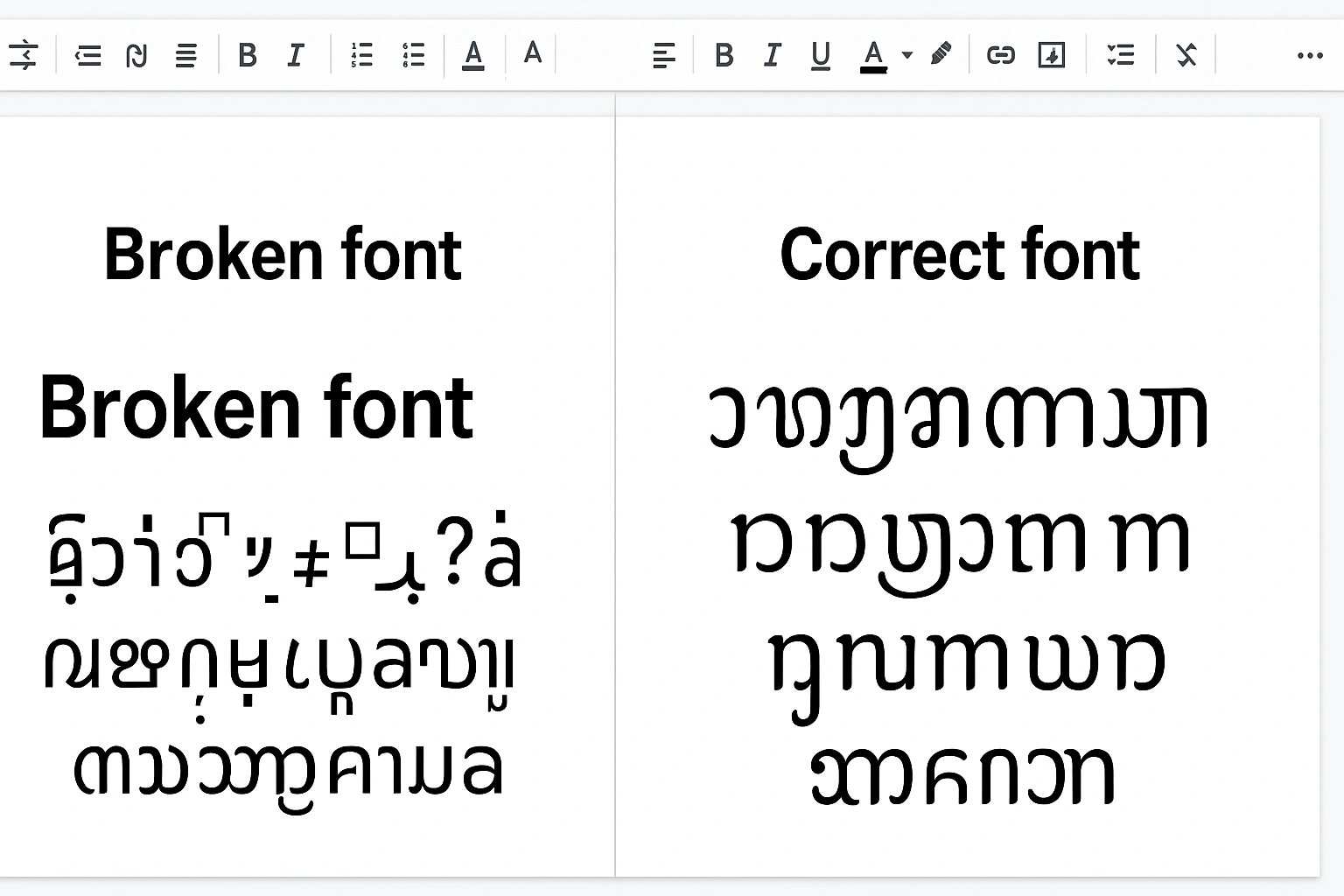
The Root of the Problem: A Deeper Dive into Unicode and Font Rendering
To fix the issue, you first need to understand it. The problem isn’t usually with the Javanese characters themselves. Since the release of Unicode Standard 5.2 in 2009, Javanese has had its own official block, ranging from code points U+A980 to U+A9DF. This was a monumental step for digital preservation, standardized by the Unicode Consortium. It means every Javanese letter (aksara), diacritic (sandhangan), and symbol has a unique, universal digital code. Your computer knows *what* the characters are.
The issue arises in the next, crucial step: text shaping. Unlike a simple Latin script where ‘c-a-t’ are just placed side-by-side, Javanese is a complex abugida. Characters must interact, stack, and change form based on their neighbors. For example, to write “mangan sega” (to eat rice), you can’t just line up the letters. The character for ‘n’ needs to be followed by a special character to turn off its vowel, and the following ‘s’ must transform into a subscript form (a pasangan). This complex logic isn’t defined in Unicode; it’s built into the font file itself using OpenType technology. A “shaping engine” is the software component within an application (like Word or your web browser) that reads these rules from the font and correctly assembles the characters on your screen.
When your text breaks, it means one of two things is happening:
- The font you are using is old or poorly made and lacks the necessary OpenType shaping rules (like GSUB and GPOS tables).
- The application’s shaping engine isn’t being used correctly or is outdated, so it ignores the brilliant rules coded inside the font.
Luckily, both Google Docs and modern versions of Microsoft Word have capable shaping engines. You just need to know how to connect them with the right fonts.
The Definitive Fix for Javanese Text in Google Docs
Google Docs runs in your web browser, so its ability to render Hanacaraka depends heavily on both the browser’s capabilities and the Hanacaraka fonts available through Google Fonts. For years, displaying Hanacaraka correctly was a major challenge for users, but recent updates to browsers and the Google Fonts library have made Hanacaraka rendering much more reliable. With the right setup, Google Docs can now handle Hanacaraka text accurately, preserving the flow and beauty of the script.
The Solution: Choose a Unicode-Compliant Google Font
The key to success in Google Docs is selecting a font that is not only designed for Javanese but is also correctly programmed with all necessary OpenType features for web rendering. While several options exist, the most robust and accessible choice is “Tuladha Jejeg.”
Step-by-Step Guide for Google Docs:
- Open your Google Doc.
- Select the Font Dropdown: In the toolbar, click on the current font (e.g., “Arial”).
- Click “More fonts”: At the top of the font list, you’ll see an option to add more fonts to your personal library.
- Search for Javanese Fonts: In the “More fonts” window, click the “Scripts” filter dropdown and select “Javanese.” This is the most important step, as it will show you all the Google Fonts that officially support the Javanese Unicode block.
- Select “Tuladha Jejeg”: Find this font in the list. You may also see others like “Nirmala UI”. Click on “Tuladha Jejeg” to highlight it, which adds it to your font library, and press “OK.”
- Apply the Font: Now, highlight your broken Javanese text (or prepare to type new text) and select “Tuladha Jejeg” from your main font dropdown. The text should immediately re-render correctly, with all characters stacking and connecting as they should.
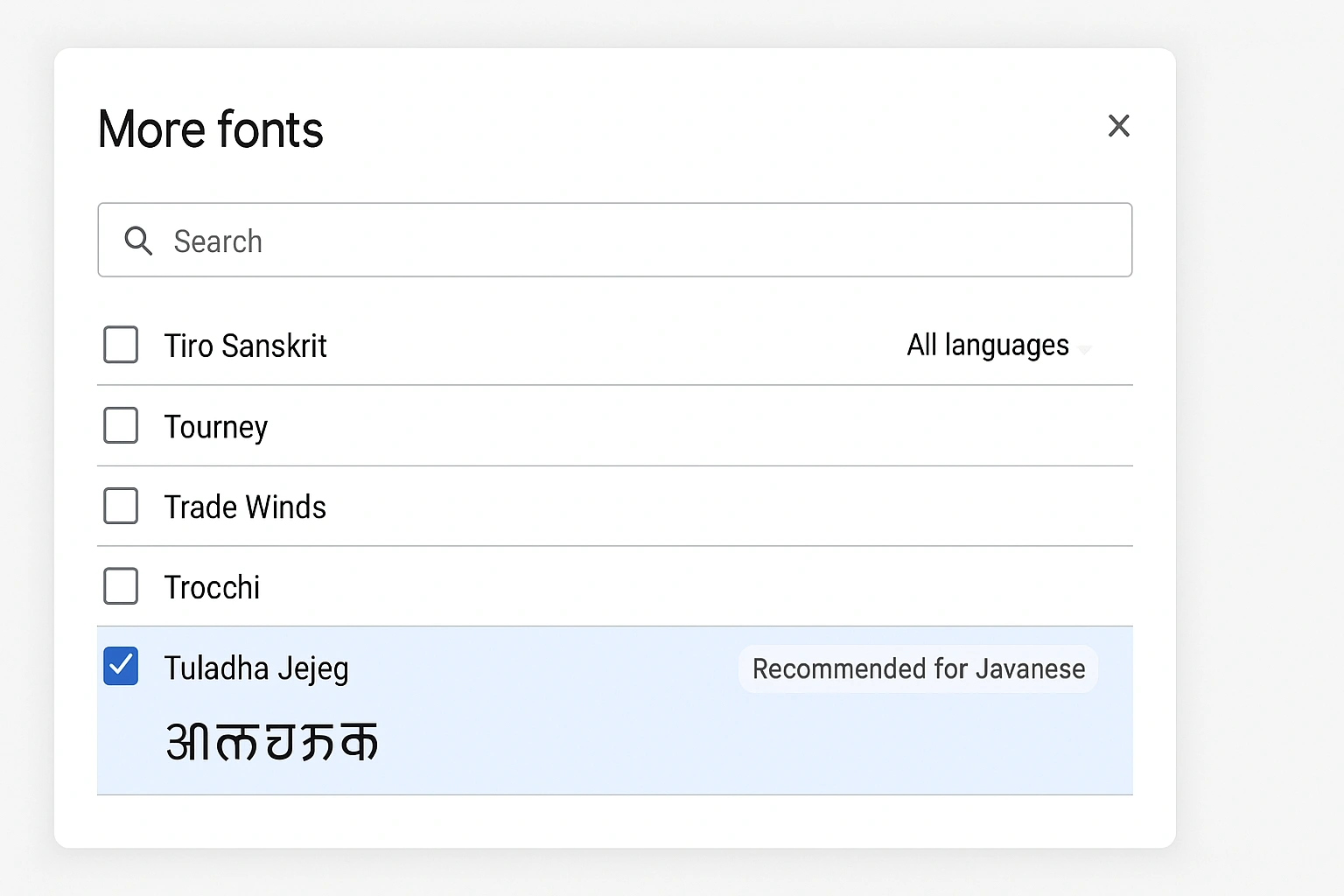
This works because Tuladha Jejeg is a modern font specifically designed with all the necessary OpenType features, and Google’s rendering engine (built into Chrome, Firefox, etc.) is now smart enough to apply them correctly when the font is properly identified and loaded.
Mastering Javanese Script in Microsoft Word
Microsoft Word has a powerful text shaping engine, but its effectiveness can depend on your version of Word and your operating system. In modern versions (Office 2016 and newer, and Microsoft 365), the Universal Shaping Engine handles Javanese very well. The key is feeding it a high-quality, locally installed font.
The Solution: Install a System Font and Let Word Work Its Magic
Unlike Google Docs, Word relies on fonts installed directly on your computer (Windows or macOS). The process is about getting the right font onto your system first, then telling Word to use it.
Step-by-Step Guide for Microsoft Word:
- Download a High-Quality Font: You need a Unicode-compliant Javanese font. While Windows 10 and 11 include a default “Javanese Text” font which is a good start, custom-built fonts are often superior. For professional use, consider our Hanacaraka Font Pack, which is guaranteed to be compliant. Another excellent community-provided font is “Adjisaka”.
- Install the Font on Your System: On Windows, find the downloaded font file (OTF or TTF), right-click it, and select “Install for all users.” On macOS, open the font file and click “Install Font” in the Font Book application that appears.
- Restart Microsoft Word: This is a crucial step. You must completely close and reopen Word to force it to scan your system’s font directory and recognize the newly installed font.
- Select the Font in Word: Open your document, go to the Font dropdown menu in the Home ribbon, and select the Javanese font you just installed (e.g., “Adjisaka”).
Once you start typing, Word’s Universal Shaping Engine, a concept detailed in Microsoft’s typography documentation, should automatically detect the script and apply the font’s internal shaping rules. If it still appears broken, it is almost certainly because the font itself is outdated or not fully compliant with modern OpenType standards.
Advanced Troubleshooting & Best Practices
- The Copy-Paste Nightmare: If you copy Javanese text from a website or PDF, it might carry incorrect formatting or even be composed of non-standard, private-use characters. To fix this, always paste it into your document using “Paste as plain text” (Ctrl+Shift+V or Cmd+Shift+V) and then re-apply your chosen Javanese font.
- Outdated Systems & Software: If you are using a very old operating system (like Windows 7) or an old version of Office (2013 or earlier), the shaping engine (known as Uniscribe in older Windows versions) may not be fully capable of handling Javanese script. Upgrading your OS or Office suite is often the only reliable solution.
- Language Settings in Word: For best results in Word, select your Javanese text and go to `Review > Language > Set Proofing Language`. Find “Javanese” in the list and set it. This can help Word’s engine prioritize the correct shaping rules.
- Beyond Word Processors: The principles discussed here are universal. If you’re facing similar issues in design software, check out our guide for fixing Javanese script in Figma and Canva, as they often have their own unique rendering challenges.
Conclusion: The Right Tools for a Timeless Script
The beauty and complexity of the Javanese script is a testament to a rich cultural history. In the digital age, preserving that beauty means understanding the technology that brings it to life. Broken text is not an insurmountable bug but a technical hurdle that can be cleared with the right knowledge and tools. The work of organizations like SIL International in documenting these requirements has been invaluable to developers and typographers.
By combining a modern, high-quality Hanacaraka Unicode font with the shaping engines in Google Docs and Microsoft Word, you can ensure that every Hanacaraka character, from the basic U+A980 and beyond, displays correctly. Using the right tools allows Hanacaraka to retain its elegance and accuracy, making Hanacaraka text both readable and faithful to its traditional form. This approach helps preserve Hanacaraka as an important part of world heritage for generations to come.